IMAP
IMAP Gmail
Gmail Yahoo
YahooLearn about IMAP
IMAP (Internet Message Access Protocol) is a standard email protocol used to access emails of a web server to local system. This will help users to get a copy of cloud emails to local system.
In other words, users can read IMAP server emails on desktop, laptop computer, etc. This protocol helps users to work on multiple computers in multiple locations.
IMAP protocol generally works on two ports –
Port 143: Default IMAP non-encrypted port
Port 993: Port to use if you connect using IMAP securely
IMAP Offers
- Access your emails from multiple computers
- Access messages without downloading from server or transfer messages from one system to another
- Compatible with internet messaging standards like MIME
- IMAP supports both online and offline modes of operation
- IMAP make it possible to easily create folder or subfolders on server
How to find out the correct IMAP address?
To backup cloud emails, you need to have correct IMAP settings. You need to provide host name, port name, IMAP account username, and password.
For more details to find out IMAP Server settings, follow the below-mentioned link -
https://www.emailsettings.email/search/pop3-imap-smtp-outlook.com-email-settings
Gmail IMAP Settings
Gmail requires an App Password for third-party applications. Use these IMAP settings to connect Gmail with any application.
How to Generate Gmail App Password
- Go to your Google Account settings (myaccount.google.com)
- Navigate to Security section
- Enable 2-Step Verification if not already enabled
- Under "2-Step Verification", click on App passwords
- Select app: Mail and device: Other (Custom name)
- Enter a name for your application (e.g., "Email Migration Tool")
- Click Generate and copy the 16-character password
- Use this App Password instead of your regular Gmail password in applications
Enable IMAP in Gmail
- Open Gmail and click the Settings gear icon
- Go to See all settings
- Click on Forwarding and POP/IMAP tab
- Under "IMAP access", select Enable IMAP
- Click Save Changes
Gmail IMAP Configuration
| Setting | Value |
|---|---|
| Incoming Mail Server (IMAP) | imap.gmail.com |
| Port | 993 |
| Security/Encryption | SSL/TLS or STARTTLS |
| Outgoing Mail Server (SMTP) | smtp.gmail.com |
| SMTP Port | 465 (SSL) or 587 (TLS) |
| Username | Your full Gmail address (e.g., [email protected]) |
| Password | 16-character App Password (not your regular Gmail password) |
| Authentication | Required |
Outlook.com IMAP Settings
Outlook.com (formerly Hotmail) requires an App Password for third-party applications to access IMAP.
How to Generate Outlook App Password
- Sign in to your Outlook.com account
- Go to Microsoft Account Security
- Enable Two-step verification if not already enabled
- Click on Advanced security options
- Under "App passwords", click Create a new app password
- Enter a name for your application (e.g., "Email Client")
- Click Generate and copy the app password
- Use this App Password instead of your regular Outlook password
Enable IMAP in Outlook.com
- Sign in to Outlook.com
- Click the Settings gear icon (top right)
- Go to View all Outlook settings
- Click Mail → Sync email
- Under "POP and IMAP", ensure IMAP is enabled
- Click Save
Outlook.com IMAP Configuration
| Setting | Value |
|---|---|
| Incoming Mail Server (IMAP) | outlook.office365.com |
| Port | 993 |
| Security/Encryption | SSL/TLS |
| Outgoing Mail Server (SMTP) | smtp.office365.com |
| SMTP Port | 587 (TLS) |
| Username | Your full Outlook.com email address |
| Password | App Password (generated from Microsoft Account) |
| Authentication | Required |
Office 365 IMAP Settings
Office 365 requires an App Password for third-party applications. Follow these steps to configure IMAP access.
How to Generate Office 365 App Password
- Sign in to your Office 365 account
- Go to Microsoft Account Security
- Enable Two-step verification if not already enabled
- Click on Advanced security options
- Under "App passwords", click Create a new app password
- Enter a name for your application
- Click Generate and copy the app password
- Use this App Password for IMAP authentication
Enable IMAP in Office 365
IMAP is usually enabled by default in Office 365. If you need to verify:
- Sign in to Office 365 admin center (if you're an admin)
- Go to Settings → Mail
- Verify that IMAP is enabled for your organization
- For individual users, IMAP is enabled by default
Office 365 IMAP Configuration
| Setting | Value |
|---|---|
| Incoming Mail Server (IMAP) | outlook.office365.com |
| Port | 993 |
| Security/Encryption | SSL/TLS |
| Outgoing Mail Server (SMTP) | smtp.office365.com |
| SMTP Port | 587 (TLS) |
| Username | Your full Office 365 email address |
| Password | App Password (generated from Microsoft Account) |
| Authentication | Required |
Yahoo Mail IMAP Settings
Yahoo Mail requires an App Password for third-party applications. Regular password authentication is no longer supported.
How to Generate Yahoo App Password
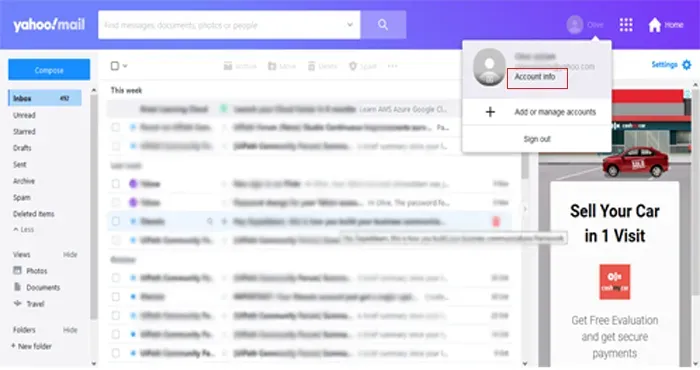
- Login to your Yahoo account
- Click on your account icon and go to Account Info
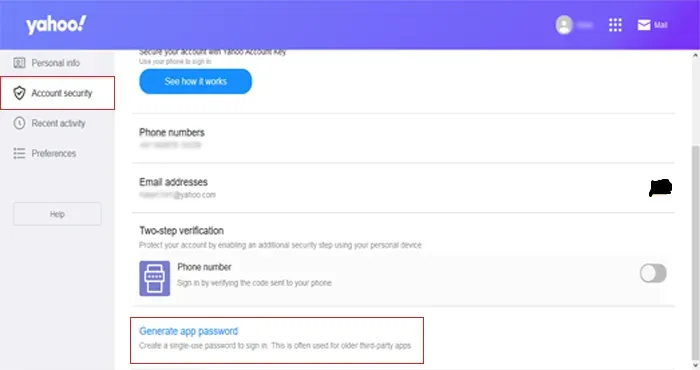
- Click on Account Security
- Go to Generate App password
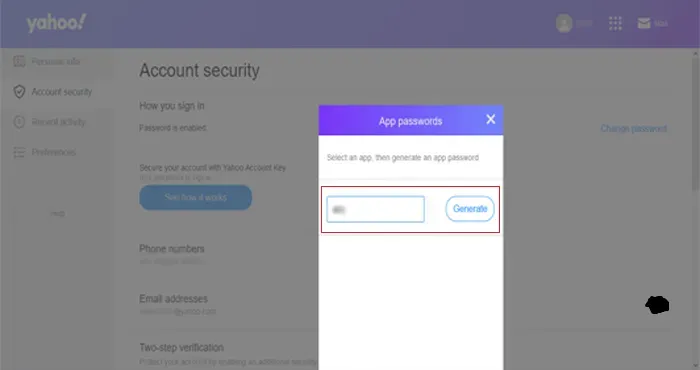
- Select your app and provide a custom name (e.g., "Email Migration Tool")
- Click Generate and copy the app password
- Use this App Password instead of your regular Yahoo password
Yahoo IMAP Configuration
| Setting | Value |
|---|---|
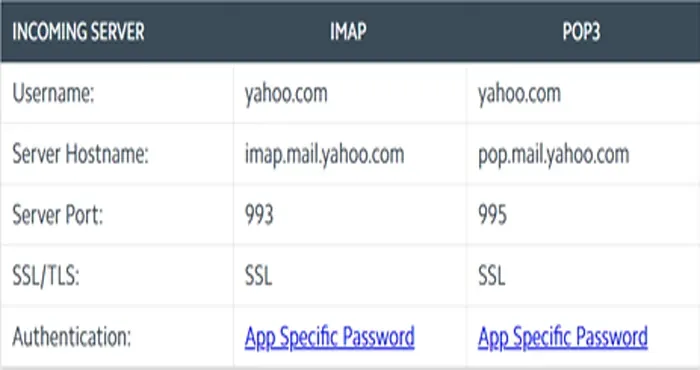
| Incoming Mail Server (IMAP) | imap.mail.yahoo.com |
| Port | 993 |
| Security/Encryption | SSL/TLS |
| Outgoing Mail Server (SMTP) | smtp.mail.yahoo.com |
| SMTP Port | 587 (TLS) or 465 (SSL) |
| Username | Your full Yahoo email address |
| Password | App Password (generated from Yahoo Account Security) |
| Authentication | Required |
Visual Guide
Yahoo IMAP Settings
Step 1: Login to your Yahoo account and click on user account icon and go to Account Info
Step 2: Click on Account Security and then go to Generate App password.
Step 3: Select your app and provide a custom name. By this, you can generate a temporary password which can be used to backup Yahoo data.
iCloud Mail IMAP Settings
iCloud Mail requires an App-Specific Password for third-party applications. Follow these steps to configure IMAP access.
How to Generate iCloud App-Specific Password
- Sign in to your Apple ID account at appleid.apple.com
- Go to Sign-In and Security section
- Enable Two-Factor Authentication if not already enabled
- Under "App-Specific Passwords", click Generate an app-specific password
- Enter a label for your application (e.g., "Email Client")
- Click Create
- Copy the generated password (you won't be able to see it again)
- Use this App-Specific Password instead of your regular Apple ID password
Enable IMAP in iCloud Mail
- IMAP is enabled by default for iCloud Mail
- No additional settings need to be configured in iCloud
- Simply use the App-Specific Password for authentication
iCloud Mail IMAP Configuration
| Setting | Value |
|---|---|
| Incoming Mail Server (IMAP) | imap.mail.me.com |
| Port | 993 |
| Security/Encryption | SSL/TLS |
| Outgoing Mail Server (SMTP) | smtp.mail.me.com |
| SMTP Port | 587 (TLS) |
| Username | Your iCloud email address (e.g., [email protected]) |
| Password | App-Specific Password (generated from Apple ID account) |
| Authentication | Required |
Zoho Mail IMAP Settings
Zoho Mail requires an App Password for third-party applications. Follow these steps to configure IMAP access.
How to Generate Zoho App Password
- Sign in to your Zoho Mail account
- Go to Settings → Security
- Enable Two-Factor Authentication if not already enabled
- Scroll down to App Passwords section
- Click Generate New Password
- Enter a name for your application (e.g., "Email Client")
- Click Generate and copy the app password
- Use this App Password instead of your regular Zoho password
Enable IMAP in Zoho Mail
- Sign in to Zoho Mail
- Go to Settings → Mail Accounts
- Click on your email account
- Under "POP/IMAP Access", enable IMAP Access
- Click Save
Zoho Mail IMAP Configuration
| Setting | Value |
|---|---|
| Incoming Mail Server (IMAP) | imap.zoho.com |
| Port | 993 |
| Security/Encryption | SSL/TLS |
| Outgoing Mail Server (SMTP) | smtp.zoho.com |
| SMTP Port | 587 (TLS) or 465 (SSL) |
| Username | Your full Zoho email address |
| Password | App Password (generated from Zoho Security settings) |
| Authentication | Required |
AOL Mail IMAP Settings
AOL Mail requires an App Password for third-party applications. Regular password authentication is no longer supported.
How to Generate AOL App Password
- Sign in to your AOL account
- Go to AOL Account Security
- Click on Account Security
- Enable Two-Step Verification if not already enabled
- Scroll to App-Specific Passwords section
- Click Generate App Password
- Enter a name for your application
- Click Generate and copy the app password
- Use this App Password instead of your regular AOL password
Enable IMAP in AOL Mail
- IMAP is enabled by default for AOL Mail accounts
- No additional settings need to be configured
- Simply use the App Password for authentication
AOL Mail IMAP Configuration
| Setting | Value |
|---|---|
| Incoming Mail Server (IMAP) | imap.aol.com |
| Port | 993 |
| Security/Encryption | SSL/TLS |
| Outgoing Mail Server (SMTP) | smtp.aol.com |
| SMTP Port | 587 (TLS) or 465 (SSL) |
| Username | Your full AOL email address |
| Password | App Password (generated from AOL Account Security) |
| Authentication | Required |
ProtonMail IMAP Settings
ProtonMail requires a paid plan (ProtonMail Plus or higher) to access IMAP/SMTP. Bridge application is required for secure email access.
How to Set Up ProtonMail Bridge
- Ensure you have a ProtonMail Plus, Professional, or Visionary plan
- Download and install ProtonMail Bridge from proton.me/mail/bridge
- Launch ProtonMail Bridge and sign in with your ProtonMail credentials
- Bridge will generate IMAP and SMTP credentials for your email client
- Use the credentials provided by Bridge in your email application
- Bridge runs locally and encrypts/decrypts emails automatically
ProtonMail Bridge Configuration
After installing Bridge, it will provide you with local IMAP/SMTP settings:
ProtonMail IMAP Configuration (via Bridge)
| Setting | Value |
|---|---|
| Incoming Mail Server (IMAP) | 127.0.0.1 (localhost) |
| Port | 1143 (as shown in Bridge) |
| Security/Encryption | None (Bridge handles encryption) |
| Outgoing Mail Server (SMTP) | 127.0.0.1 (localhost) |
| SMTP Port | 1025 (as shown in Bridge) |
| Username | Your ProtonMail email address |
| Password | Bridge Password (generated by Bridge application) |
| Authentication | Required |
RediffMail IMAP Settings
RediffMail provides IMAP access for third-party email applications. Follow these steps to configure IMAP access.
Enable IMAP in RediffMail
- Sign in to your RediffMail account
- Click on Settings (gear icon)
- Go to Mail Settings
- Navigate to POP/IMAP Settings
- Enable IMAP Access
- Click Save to apply changes
RediffMail IMAP Configuration
| Setting | Value |
|---|---|
| Incoming Mail Server (IMAP) | imap.rediffmail.com |
| Port | 993 |
| Security/Encryption | SSL/TLS |
| Outgoing Mail Server (SMTP) | smtp.rediffmail.com |
| SMTP Port | 587 (TLS) or 465 (SSL) |
| Username | Your full RediffMail email address |
| Password | Your RediffMail account password |
| Authentication | Required |